Posts Tagged ‘technology’

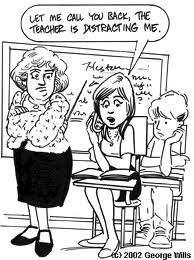
I am Destined to be Replaced by a Computer

September 27, 2012


If I am to be replaced by a computer I have the following requests to make of my replacement:

1. The computer must have a sense of humour: My students love to laugh. The computer should never take himself too seriously.

2. The computer must be tough on bullying: Bullying can destroy a child’s school life. The computer must crack down on that.

3, The computer must be patient: It is very important to remain calm and supportive without giving up on the students.

4. The students must be caring and command respect from the students: We have all had heartless teachers. They don’t work.

5. The computer must be aware of any self-esteem issues that may arise in the classroom: The computer must be perceptive.


As my days as a teacher seems to be numbered, I hope my replacement manages to stay true to my list:

Teachers will likely be replaced by humanised computers so advanced they can read and consciously respond to students’ voices, faces and interests within decades, Apple co-founder Steve Wozniak says.

The once-shy electronics whiz kid who formed the computing juggernaut with Steve Jobs in 1976 says the exponential growth of modern technology has changed his long-held belief that computers could never achieve humanoid intelligence.

“I just said no, that’s ridiculous, the brain works in totally different ways … it’s just not going to happen. Now I’ve come around, and I see that yes, it is going to happen,” Wozniak told a packed Melbourne Convention Centre on Wednesday.


Click on the link to read 50 Ways To Use Skype In Your Classroom

Click on the link to read Top 10 Educational i-Pad Apps

Click on the link to read Top 10 Math Apps for Children

Click on the link to read The Pros and Cons of iPads in the Classroom

50 Ways To Use Skype In Your Classroom

September 17, 2012

Courtesy of edudemic.com. Below is the first 17 suggestions:

  1. Meet with other classrooms:
    One of the most common projects educators utilize Skype for is setting up exchanges with classrooms around the world, usually for cultural exchange purposes or working together on a common assignment. The program’s official site provides some great opportunities to meet up with like-minded teachers and students sharing the same goals.
  2. Practice a foreign language:
    Connect with individual learners or classrooms hailing from a different native tongue can use a Skype collaboration to sharpen grammar and pronunciation skills through conversation.
  3. Peace One Day:
    Far beyond classroom collaborations, the Peace One Day initiative teamed up with Skype itself and educators across the globe to teach kids about the importance of ending violence, war, and other social ills.
  4. Around the World with 80 Schools:
    This challenge asks participating schools to hook up with 80 worldwide and report back what all they’ve learned about other cultures and languages.
  5. Talk about the weather:
    One popular Skype project sees participants from different regions make note of the weather patterns for a specified period of time, with students comparing and contrasting the results.
  6. Collaborative poetry:
    In this assignment, connected classrooms pen poetic pieces together and share them via video conferencing.
  7. Practice interviews:
    The education system frequently receives criticism for its failure to prepare students for the real world, but using Skype to help them run through mock-up interviews with each other, teachers, counselors, or professionals will help grant them an advantage.
  8. Gaming:
    Merge the educational power of gaming with the connectivity of Skype for interactive (maybe even international!) role-playing and other competitive delights that educate and engage in equal measure.
  9. Hold a contest:
    Challenge other classrooms to a competition circling around any subject or skill imaginable, and work out a suitable prize ahead of time.
  10. Hold a debate:
    Similarly, Skype can also be used as a great forum for hosting formal and informal debates to help students with their critical thinking and research skills.
  11. Make beautiful music together:
    Build a band comprised of musicians worldwide, who play and practice together over video — maybe even hold digital performances, too!
  12. Who are the people in your neighborhood?:
    All the press about classrooms meeting with one another tend to veer towards the international, but some schools like to stay local. These two Tampa Bay-area kindergartens met regularly via Skype, sharing their current assignments with new friends only 10 miles away.
  13. Highlight time differences:
    But there is something to be said about global exchanges, too, as it provides some insight into the differences between time zones — great for geography classes!
  14. Combine with augmented reality:
    Both at home and in school, Skype provides a communication tool for collaborative augmented reality projects using the PSP and other devices.
  15. Mystery call:
    Link up to a classroom in another region and have them offer up hints as to their true location, challenging students to guess where in the world their new friends live.
  16. Each student works a specific job during calls:
    Divvy up responsibilities during Skype calls so every student feels engaged with the conversation, not just passive participants watching talks pan out. Assign bloggers, recorders, mappers, and any other tasks relevant to the meeting and project.
  17. Play Battleship:
    The classic board game Battleship offers up lessons in basic X and Y axes; plus it’s also a lot of fun. Compete against other classrooms for an educational good time.

Click here to read the rest.

Click on the link to read Top 10 Educational i-Pad Apps

Click on the link to read Top 10 Math Apps for Children

Click on the link to read The Pros and Cons of iPads in the Classroom

“Take my iPhone and be Quiet!”

August 20, 2012

Interesting research has shown that households where the television and computers are in regular use don’t communicate effectively:

Jane Beale, a speech pathologist on the NSW central coast, said previous work focusing on television usage in the US had shown that, in households where TV usage was minimal, about 6000 words per day were spoken by the home’s occupants. That compared with the 500 words spoken in homes where TVs were on for most or all of the day.

“More and more now we have got not only TV and video games, but we have iPhones and iPads, and we have parents spending time on iPhones and iPads rather than engaging directly face-to-face . . . with their child,” Ms Beale said. “Because these devices are so tantalising to children, they are spending long periods of time with these devices if their parents don’t regulate that.”

Other speech pathologists agreed that, while there was as yet no evidence that devices were causing language delays, there was a developing suspicion that a link did exist.

Adelaide speech pathologist Debbie James said she “took a more cautious view” because of the limited evidence, but said there was “pretty clear evidence there’s about 20 per cent of children that have delayed speech and language skills”, compared with other children of the same age.

Her research had found a “strong association between the frequency with which parents speak with their children when they were nine months old, and the child’s language skills two years later”.

Click on the link to read The Top 50 Best Apps for Children

Click on the link to read Smartboards Must Become More than Just Classroom Decoration

Click on the link to read There is Still Some Love for the Forgotten Class Whiteboard

The Cafeteria Controversy

August 18, 2012

Talk about a lot of hot air. So what if a school uses a scanner to serve children with greater efficiency. Big deal! Honestly, sometimes parents complain for the sake of complaining:

Moss Bluff Elementary School in Louisiana is looking to streamline lunch payments by implementing a palm vein scanner program, but some parents aren’t pleased.

A letter to parents this week informed them of the new scanner that will allow the school’s nearly 1,000 students to move through the lunch line faster and with fewer payment mistakes — an issue that had arisen in the past, KPLC-TV reports.

While the letter notes that parents can opt their children out of the program, parent Mamie Sonnier told KPLC-TV that she was angry and disappointed by the program, as the scanner violates her beliefs. She contends that if the scanners actually make it to the school cafeteria, she’ll be transferring her kids to another school.

“As a Christian, I’ve read the Bible, you know go to church and stuff,” Sonnier said. “I know where it’s going to end up coming to, the mark of the beast. I’m not going to let my kids have that.”

Calderara notes that it’s just “technology that is used throughout our lives. Everywhere.”

Florida’s Pinellas Schools were the first to adopt palm scanning technology to pay for lunch last fall under a voluntary program. The technology uses infrared light to read unique vein patterns connected to meal plans.

It’s two seconds to buy a meal. Literally, two seconds,” Edward Rutenbeck, senior user support analyst with Pinellas Schools Food Services told WTSP.

Click on the link to read Insensitive ‘Parent Bashers’ Take Aim at Grieving Colorado Parents

Click on the link to read Mother Films Her Kids Fighting and Posts it on Facebook

Click on the link to read It’s Not Spying on Your Children, It’s Called Parenting

The Pros and Cons of iPads in the Classroom

August 13, 2012

Teacher and blogger David Andrews charts reasons for and against introducing i-Pads into the classroom.

In my mind these were the pros:

• Ease and speed of use and accessibility: The touch interface and app system on the iPad makes it easy to access learning tools. On a laptop you have to open the lid, turn it on, wait for it to load, log in to your account and then wait for the operating system to load.
• Audio visual (AV) tools: The iPad has extremely easy access to AV tools (camera, video and voice recorder) which can be used creatively across countless number of apps. The laptop does have built-in cameras and microphones but they are so much more difficult to use and could require an additional piece of hardware to be connected and installed.
• Books: iPads are great for reading. iBooks allow the user to annotate, highlight and look up the meaning of words.
• Creativity: The in-built AV tools means that the iPad has endless possibilities to be used creatively in any subject in the school curriculum, it just need imagination. For example there are apps for drawing, editing photos, creating movies, ebooks, animations and photo stories, composing music, writing graphical novels and other useful creative apps. In addition, many of these apps have the option to publish work to larger audiences online, increasing the incentive for the children to produce quality pieces of work. The laptop doesn’t have the same efficiency and ease of use that the iPad has and the touch interface just makes it more fun and interactive.

And here are the cons:

• Adobe’s Flash and Javascript: One of the biggest criticisms of the iPad is its inability to work with Adobe Flash and Javascript. A lot of content in schools is dominated by Flash. Despite this, it could be argued that the iPad easily makes up for this restriction with a huge selection of apps.
• Multitasking: A drawback with the iPads is the fact that multiple ‘windows’ or files cannot be kept open, side-by-side unlike on computers, although there are apps that allow multiple pages to be open side by side.
• Word processing: The iPad is quite limited as a device that you would use regularly to word process on. I much prefer to type lengthy documents on my computer, where I can switch quickly between browser, word processing and email. Despite this I still use the iPad regularly for light writing such as emails and Twitter.

Click on the link to read The Top 50 Best Apps for Children
Click on the link to read How do you Assess a Student Who Knows More Than You Do?

Click on the link to read There is Still Some Love for the Forgotten Class Whiteboard

How do you Assess a Student Who Knows More Than You Do?

August 12, 2012

I have a student who is more confident and knowledgeable when it comes to IT. I am more than adept myself, but I am no match for him. The funny part of that is that I have to assess and report on a child who knows more than I do.

I am sure I am not alone. Experts are warning that our children are becoming far more tech savvy that we are:

SCHOOLS should be braced for the next generation of tech-savvy children, experts warn.

RMIT lecturer in the school of education, Nicky Carr, said most children aged 1-4 were adept at tablet technology and smart phones.

“They are very quick to pick up how to make it do what they want it to do,” Ms Carr said.

“These devices are actually really fun and a small child enjoys the instant results that come from brushing their finger across a screen. You don’t need to be able to read or understand language to get something to happen on these devices.”

“It’s a challenge for schools to know how to build on that literacy.

“It’s a financial consideration for them how to equip the school with the devices and then how do they use the devices in ways that are educational?”

Click on the link to read The Top 50 Best Apps for Children
Click on the link to read The Cell Phone will be the New Pencil Case

Click on the link to read There is Still Some Love for the Forgotten Class Whiteboard

The Cell Phone will be the New Pencil Case

August 7, 2012

With schools now permitting the use of cell phones in the classroom, it’s only a matter of time before cell phones will be seen as a pivotal student learning tool.

Below are some strategies for teaching with cell phones:

  • 1

    Create a cell phone usage contract. Before an educator can begin to use cell phones in her class, she must obtain parental agreements. While potentially educationally beneficial, cell phones in the hands of irresponsible children can lead to a world of trouble. From creating excessively high phone bills to engaging in inappropriate contact with peers or adults, children can do a lot of damage with a simple cellular telephone. In your cell phone usage agreement, explain how you would use the cell phones in school and ensure that parents agree to allow their children to use personal cell phones in the fashion that you describe.

  • 2

    Lay down the law. Cell phones in the classroom are ineffective if they are not used properly. Discuss proper and improper cell phone usage practices with your students. Explain that cell phones in class are an educational tool and should be used as such, not as a toy or for surreptitiously contacting friends during class. Write up the rules of cell phone usage and post them prominently in the class. Remind students that if they are caught breaking the cell phone usage rules, they will lose their classroom cell phone privileges.

  • 3

    Introduce cell phones with a game. To help students become acclimated to the somewhat unorthodox concept of using cell phones in class, ease them into the usage of the phone by having them engage in a practice that they likely partake in regularly: text message voting. After student presentations or the reading of a collection of student stories, ask students to vote for their favorite of the bunch by texting in their vote. A variety text voting services allow you to create and implement your own poll. Many of these services are free if you select to open your poll up to a limited number of respondents. Check the resource section below for a listing of several text voting systems that you can use in your classroom.

  • 4

    Take pictures with cell phones. As the old adage goes, a picture is worth a thousand words, and a cell phone is a readily available means with which to take a picture. Create a lesson in which students capture pictures. They could take pictures of plants or animals for science class, people who could become characters in their stories for English or geometric figures. Download the pictures from the students’ phones and print, allowing students to use the images in a classroom assignment.

  • 5

    Communicate with individuals outside the class. Take full advantage of the easy communication that cell phones allow. Create situations in which students can use their cell phones to call people and seek information. If you want students to write about a geographic location, allow them to use their cell phones to call a visitor’s bureau in that area. If students are writing about an event that occurred in their family, encourage them to call a relative to seek information which they can incorporate into their written work.

  • 6

    Utilize the research capabilities of cell phones. Many cell phones allow for Internet access. Use this helpful feature as a research aid. After presenting a question in class, allow the students to use their cell phones and surf the Internet to find the answer to the posed question. This will help students develop the skills necessary to hunt for and find information independently. Before asking students to use their phones’ Internet features, clear the activity with parents as expensive charges can be incurred if the phone is not part of a data plan.

Click on the link to read The Top 50 Best Apps for Children
Click on the link to read The Problem With IT in the Classroom

The Top 50 Best Apps for Children

August 5, 2012

Courtesy of The Guardian comes 50 of the best smartphone/iPad apps for children. Below is a snippet:

EDUCATION

Farm 123 app logo

FARM 123 – STORYTOYS JR iPhone/iPad – £1.49. Farm 123 aims to be a digital version of pop-up books, based on a character called Farmer Jo and his animals. It’s aimed at pre-school-age children, teaching them to count from one to 10 with cows, pigs and eggs.

Funimal Phonics app logo

FUNIMAL PHONICS iPhone/iPad – £0.69. Children and parents are well-used to phonics alphabet-learning now, and this stylish flash-cards app gives the discipline a friendly animal face. It’s also notable for its inclusion of both US and UK English accents when speaking sounds.

Little Digits app logo

LITTLE DIGITS iPad – £1.49. This marvellous numbers app gets your child to count by placing fingers on the iPad’s touchscreen, with cute cartoon numbers appearing, depending on how many fingers are pressed. Simple maths tasks give it an educational angle too.

My A-Z app logo

MY A-Z iPhone/iPad – £1.49. There are lots of alphabetical flash-card apps for iPhone, but this one stands out for its personalisation. Children can add their own photos and sounds for letters – a picture of their dog and its bark for “D”, and so on.

Numberlys app logo

NUMBERLYS iPhone/iPad – £3.99. Despite the name, this beautiful app is more about letters than numbers. It’s a mixture of games and storytelling to explain the origins of the alphabet, with a visual style influenced by films like Metropolis and the original King Kong.

Times Tables: Squeebles Multiplication

TIMES TABLES: SQUEEBLES MULTIPLICATION iPhone/iPad/Android – £0.69. This UK-developed app is aimed at 5- to 11-year-olds, providing a series of multiplication questions to earn stars and rescue cutesy characters from a nefarious Maths Monster. Up to four children can save their progress on one device.

The Singing Alphabet app logo

THE SINGING ALPHABET iPhone/iPad – £0.69. A stylish app that does what it says on the tin: letters that sing. Specifically, they sing their own phonetic sounds, and can be combined to make harmonies and tunes. Given five minutes, your child will be singing along too.

Counting with the Very Hungry Caterpillar app logo

COUNTING WITH THE VERY HUNGRY CATERPILLAR iPhone/iPad – £1.99. Eric Carle’s famous book about a fruit-munching caterpillar has been turned into a fun educational game with a mathematical skew. Your child identifies, counts and adds the foods over five levels, ensuring it appeals to a range of ages.

Around the Clock app logo

AROUND THE CLOCK iPhone/iPad – £1.49. This time-focused app wears its educational spurs lightly. It’s a collection of 24 mini-games, one for each hour of the day, from toothbrushing to pancake making. The idea is to familiarise children with the clock.

Barefoot World Atlas app logo

BAREFOOT WORLD ATLAS iPad – £2.99. If you have a child who is just becoming interested in geography, this is an essential buy. It’s a digital globe with music and animation, drawing kids in to the meat of its text and photographic entries on countries, people and nature.

Change4Life Fun Generator app logo

CHANGE4LIFE FUN GENERATOR iPhone/iPad/Android – Free. Part of a wider Department of Health initiative to get families out and about, this app suggests more than 100 activities for children, filtering them by indoors/outdoors and the number of participants. A summer-holiday lifesaver for parents.

Cooper's Pack: London Children's Travel Guide app logo

COOPER’S PACK: LONDON CHILDREN’S TRAVEL GUIDE iPhone/iPad – £1.49. For parents taking their children to London as a tourist, what better guide than a stuffed dog named Cooper? This travel app is a story-based guide to London’s history and attractions, with plenty of interactivity to keep children reading.

Famigo Sandbox app logo

FAMIGO SANDBOX Android – Free. If you’re handing over an Android device to a child, Famigo Sandbox is invaluable. It filters the apps on your phone to only show those suitable for children, locks off other features, and recommends new apps they might like.

Move the Turtle app logo

MOVE THE TURTLE iPhone/iPad – £1.99. Can five-year-olds start learning to program? They can with this app, which aims to teach the basics of computer programming by planning tasks – all presented by a friendly turtle character to spark their imagination.

The Happy Face app logo

THE HAPPY FACE iPhone/iPad – £0.69. Most parents have used a reward chart for their children at some point. This turns the idea into an app for use while out and about, moving children’s photos onto a happy or sad face according to their behaviour.

Your Fantastic Elastic Brain app logo

YOUR FANTASTIC ELASTIC BRAIN iPad – £1.99. Aimed at five-year-olds and up, this is a book app all about brains, using illustration and animation to explain some complex science, while throwing in “brain workout” games to help children stretch their grey cells.

Click on the link to read all 50.


Click on the link to read Top 10 Educational i-Pad Apps

Click on the link to read Smartboards Must Become More than Just Classroom Decoration

Click on the link to read There is Still Some Love for the Forgotten Class Whiteboard

New Tablet Being Designed Specifically for the Classroom

July 24, 2012

I hope this new innovation proves inexpensive enough for public school students to enjoy as well:

NEWS Corp says it will launch a new tablet computer with AT&T aimed at the education market to bring “digital innovation” to US classrooms.

The media conglomerate headed by Rupert Murdoch says the effort will come from its education division, which is being renamed Amplify.

“Amplify is dedicated to reimagining K-12 (elementary and secondary) education by creating digital products and services that empower students, teachers and parents in new ways,” the company said in a statement.

“It is our aim to amplify the power of digital innovation to transform teaching and learning and to help schools deliver fundamentally better experiences and results,” said Joel Klein, chief executive of Amplify.

“Amplify will introduce new products in a thoughtful way, so that technology can finally live up to its promise to advance learning and augment teaching for students, teachers and parents everywhere.”

Ralph de la Vega, president and CEO of AT&T Mobility, said the effort would include “a 4G mobile tablet-based experience that we believe will significantly enhance teaching and learning for grades K-12”.

Click on the link to read Top 10 Educational i-Pad Apps

Click on the link to read Smartboards Must Become More than Just Classroom Decoration

Click on the link to read There is Still Some Love for the Forgotten Class Whiteboard

If You Can’t Beat Them, App Them

July 15, 2012

Fantastic story of a father who was so concerned about his son being bullied at school that he created an app to help his son and others deal with the problem:

A SYDNEY dad whose son was bullied at school has fought back by creating an iPad app in order to help other children dealing with the same problem.

The first program of its kind, The Dandelion Project has been taken on by Apple and it will be rolled out globally in August.

Galvin Scott Davis, 40, from Marrickville, came up with the concept for the story when his son Carter, now eight, was being bullied at school.

Created as a book series as well as an app, he used a dandelion because it grows in most countries and is associated with the idea if you blow on it you can make a wish.

He said: “Some kids aren’t really in a position to counteract bullying. The story was created to make something which would get him to talk to me about it.”

The child in the story, Benjamin Brewster, can’t physically counteract the bullies so he uses his imagination.”

On the app, children can blow on the dandelion and see it scatter, while making a wish.

The project will also include the topics of cyber bullying, female bullying, and look at the story of the bullies themselves.

Luke Enrose, who worked on the Harry Potter films and Charlotte’s Web, also took part in the project.

Click here to read my post, ‘The Meteoric Rise of the Educational App’.
Click here to read my post, ‘The Benefits of Educational Apps’.