Archive for the ‘Technology in the Classroom’ Category

Teaching History: A More Enjoyable Affair With Visual Tools

February 11, 2014

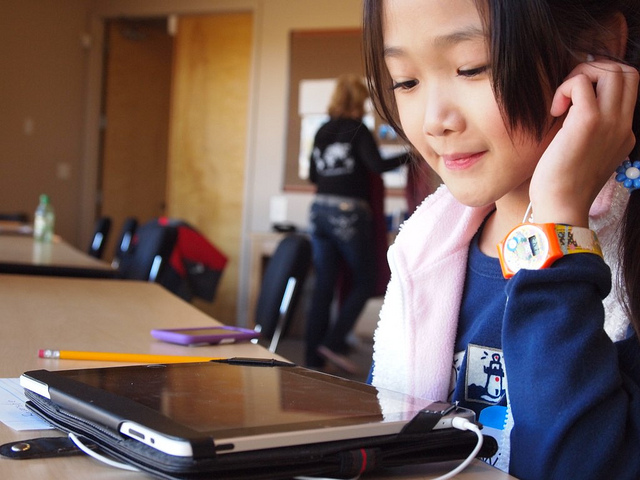
child ipadd
Photo courtesy of flickingerbrad via Flickr Creative Commons

Reader and prolific blogger Jennifer Birch was kind enough to submit an article especially written for us. History is a subject that seems to turn off students, but as Jennifer writes, that doesn’t have to be the case:

 
If there is a subject that benefits the most from visual medium, then it has to be History. It’s not a secret that many students find this particular field of study uninteresting, dull, and irrelevant. Of course, to us educators, that is not the case. But because history is comprised of entangled events that stretch endlessly from the time of the Neanderthals, it is hard for teachers to avoid the pitfall of history teaching for young learners –boredom.

Forget the tiresome dates and trivial facts; what’s more important is that the students realize the importance of these events and their relevance to the present. There is a reason why the History Channel is such an engaging piece of the television – it’s interesting. In this age of smartphones, tablets, and the rise of visual media, we can transfer the same charm that the History Channel creates for us into the classroom. Here are some of the best tech tools that take advantage of 21st century technology, helping out teachers to get students more interested:

American History in Video

This app is a cornucopia of historical footage, comprised of over 5,000 (and counting) videos on demand for free. It offers a wealth of archival footage, newsreels, olden broadcasts, images of important events and many other visual aids. Rather than letting students read up on a boring wall of text, American History on Video will show them exactly how it happened and how people at that time reacted. Hook up your laptop on your iPad and play the most exciting videos for the class. Expect many raised hands when the question and discussion time comes.

Event-specific Apps

Whenever a historical event is being discussed, know that there is a good chance that a dedicated app is already made for that. For schools that employ the BYOD model, it is recommended that teachers guide their students in downloading these apps for a better understanding of the lesson. For example, the Gettysburg 150 app “acts as a Gettysburg Battlefield assistant for visitors.”

Sheldon Jones, Verizon’s Public Relations Officer, said in his article that other historical apps such as the Civil War Trust Battle App and the Historic Gettysburg Walking Tour app are perfect for discussing the American Civil War.

Secret Builders

Role-playing games are great tools for teaching history, especially on topics that tickle the imagination of young kids such as the Greek and Roman era. Secret Builders enable children to do just that – create a virtual world where they can participate in the economy, talk to prominent people, create art and many other things. Recommended for students on the first to fourth grade, they will get a clearer picture of how it was to live during the romantic era.

Time Tube

This website is the epitome of engaging students through visual means. With Time Tube, students can type in a moment in history; and a series of related videos will be laid out on a timeline. Very easy to use and informative, this tool is even recommended for teachers to expand their knowledge on a particular historical event. Teachers can also create a custom timeline which students can access, acting as a learning aid and lecture guide.

Chrono Zoom

Created by Microsoft Research, the app contains massive amounts of curated content about thousands of topics including most of those in the curriculum of a history teacher with the help of international researchers. Middle-school teacher Samantha Shires vouches on the effectiveness of the tool. “Chrono Zoom breathes life into history,” she said.

The main brain behind Chrono Zoom is Professor Walter Alvarez from the University of California Berkeley. He was one of the proponents of the theory that an asteroid was the cause of the extinction of dinosaurs.


History is far from boring and dull. It’s our job as educators to present this fascinating subject to learners in an interesting and engaging manner. With tools such as the ones mentioned above, it is easy to create an enjoyable history class. What other tech tools for history did we miss? Tell us your favorites in the comment section below.

 
About the Author

myMINIavy


Jennifer Birch was a volunteer teacher and Ed-tech researcher. She spends most of her time writing and reading. Read more of her musings on Techie Doodlers. Contact her on Twitter or Google+.

Why is it Always the Kids’ Fault?

February 11, 2014

tristam hunt

The UK’s Educational Secretary, Tristram Hunt, has called for schoolchildren to be given ‘concentration lessons’, to fight the effects of social media and digital gadgets.

You know what this makes me want to do?

Confiscate Mr. Hunt’s phone for the day. See how he copes without his “digital gadget”.

I bet he feels naked without his “distractions.”

And it’s this rank hypocrisy that is endemic among educational ‘experts’. Here are a few examples of the prevailing double standards I am referring to:

1. They call on teachers to instruct children to become more resilient when studies show that children are far more resilient than adults.

2. They legislate against lunches that c0ntain cheese and yogurt and crisps when the average staff room often contains cakes and biscuits and lollies.

3. They become obsessed with ICT to the point where schools are expected to heavily integrate iPads and interactive Smartboards apps, but then complain that such technologies are causing our children to lose concentration.

Why do we always focus on a child’s lack of concentration and never on a teachers ability to engage? Why is it always that children have lost the capacity to maintain concentration and never that the teacher has offered up a turgid series of worksheets and unimaginative activities?

If you think the children of today are that much worse than you or I when it comes to concentration, attend a professional development seminar and observe all the bored teachers scribbling on their handouts and staring out the window.

And yes, watch as many of them will reach for their digital gadgets at some point during the lecture to catch up with any Facebook updates they may have missed.

Pure hypocrisy!

Click on the link to read Student Shot by Teacher Protests His Sacking

Click on the link to read Science Not For the Faint Hearted (Video)

Click on the link to read 7 Tips for Building a Better School Day

Click on the link to read Student Rant Goes Viral

Click on the link to read Could This be the Most Violent High School Test Question Ever?

Where iPads Fall Short in a Child’s Education

December 2, 2013


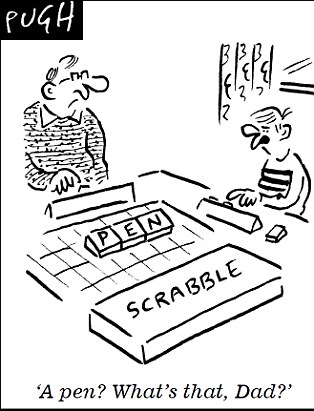
scrab

We hear a great deal about the benefits of iPads in the classroom, but not often do we get to hear about some of the negative effects:

Toddlers these days are barely out of nappies before they are playing with touch-screen toys and fiddling with iPads.

And now, it seems, they are paying the price – because when they arrive at nursery they are apparently struggling to pick up basic fine-motor skills such as holding pencils, pens and crayons.

Some nurseries have installed interactive ‘smartboards’, digital cameras and touch-screen computers to try to expose children to gadgets at an early age.

One of the learning goals in the revised Early Years Foundation Stage (EYFS) is that ‘children recognise that a range of technology is used in places such as homes and school’.

Under a section on Understanding the World, youngsters must also find out about and ‘identify the uses of everyday technology and use information and communication technology (ICT) and programmable toys to support their learning’.

Some nurseries have prioritised ICT as a result and ploughed resources into improving their facilities.

Jeff Stanford from Asquith Day Nurseries – which has invested £4million in digital technology – defended the move, saying: ‘It makes children comfortable and familiar with the technology and that is extremely useful when they start school.’

But literacy expert Sue Palmer said: ‘I think what children really need up to the age of seven is real life in real space and real time, which means three-dimensional experiences.

‘We already have problems with children not being able to hold a pen or pencil.

And Felicity Marrian, from Iverna Gardens Montessori in London, said: ‘If our children are in fact the most sedentary generation ever, according to the medical authorities, and already spend more time watching television than they do in school, do we really need to add computers and other screen-based devices to the nursery environment?’

A survey of 806 parents and early years staff carried out by website daynurseries.co.uk found that only 26 per cent believed that being exposed to technology actually benefits children in nurseries.

Davina Ludlow, director of daynurseries.co.uk, added: ‘Children are increasingly exposed to an overwhelming amount of technology at an early age.

‘The use of iPads in nurseries, which are displacing the traditional methods of learning and playing activities is concerning.

‘This poll shows that the majority of people clearly want to see early education and childhood play protected from this technological creep.’

Ms Palmer who is also the author of Toxic Childhood added:‘I think what children really need up to the age of seven is real life in real space and real time, which means three dimensional experiences.


Click on the link to read 5 Great Spelling Apps for Tablets and Smartphones

Click on the link to read Are Educators Being Conned by the i-Pad?

Click on the link to read The Best Phonics Apps for iPads

Click on the link to read Should Teachers be able to Text Students?

Click on the link to read 50 Ways To Use Skype In Your Classroom

Click on the link to read Top 10 Educational i-Pad Apps

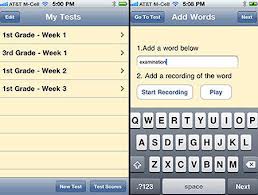
5 Great Spelling Apps for Tablets and Smartphones

August 24, 2013


spell

Courtesy of howtolearn.com:

  • Alpha Writer, by Montessorium

Alpha Writer is a stylish and effective Montessori-style app teaches kids letters and how they form words in four activities.  Kids can practice reading, writing, and spelling in the first two activities, create and read their own stories, and play the Alpha-Spy game (an interactive I-spy game).  This app teaches kids to:

✴ Read, write, and spell phonetically

✴ Pronunciation and composition of letters and words

✴ Fine motor skills

✴ Identification of letters as consonants or vowels

✴ Creativity as they write, create, and read their own stories

Users can also choose between three internationally acclaimed artists, Zeptonn, Mike Lowery and Marloes de Vries, for the graphics and illustrations.

  • C is for Cow by Forge

C is for Cow is a simple but effective app that is perfect for your youngest children.  This is the second of the 5 best spelling apps for smartphones and tablets and it teaches basic letter and word recognition, phonetics, and draws a connection to corresponding animals.  Choose from two modes: alphabetical  (which goes through animals in alphabetical order) or random (animals are tested in a random order, which helps kids exercise their knowledge).  Children are able to see and hear letters and words while enjoying the animal fun!

  • TeachMe: Kindergarten & TeachMe: 1st Grade by 24x7digital LL

The two TeachMe apps are sophisticated, award-winning apps that cover math, sight words, and spelling.  Each subject has five levels that children can advance through as they can handle the increased difficulties.  The interactive teacher, Mimi Mouse gives feedback and instructions to fully interact with kids and make learning fun.   Parents can even set the app to give out virtual rewards whenever children get a certain number of questions correct!  In addition, unique user accounts can be made for up to twenty different children.  Once children have mastered TeachMe: Kindergarten, they can advance to the next level of TeachMe: 1st Grade which is why this is one of the five best spelling apps for smartphones and tablets.

  • Montessori Crosswords by L’Escapadou

This award-winning app helps kids develop reading, writing, and spelling skills with activities that use phonics and graphics to create words.  Young children learn the fundamentals of writing and spelling while older children are challenged with complex crosswords in the three more difficult levels.  Customizable in many different ways, the app uses animations, interactive effects, and sounds to keep kids interested while a bank of over ten thousand words is available throughout the different levels.

  • The Electric Company Wordball! by PBS Kids

The Electric Company Wordball is certainly one of the 5 best spelling apps for smartphones and tables as well as an interactive phonics game that is based off of the popular PBS show, The Electric Company.  The app uses a series of educational videos that allow kids to interact as kids collect wordballs of letters.  In the second part of the game, kids use their previously collected wordballs to complete and create words for points.  The level of difficulty and need for dexterity makes this app better for kids who are at a higher level.  The Electric Company Wordball! is available for iPhone, iPad, and iPod Touch and is completely free!


Click on the link to read Are Educators Being Conned by the i-Pad?

Click on the link to read The Best Phonics Apps for iPads

Click on the link to read Should Teachers be able to Text Students?

Click on the link to read 50 Ways To Use Skype In Your Classroom

Click on the link to read Top 10 Educational i-Pad Apps

Click on the link to read Top 10 Math Apps for Children


Are Educators Being Conned by the i-Pad?

July 29, 2013

new age

There is no doubt that the i-Pad is a handy tool to have in the classroom.  But is it really essential? Essential to the point that if schools don’t supply them they are doing a disservice to their students?

It is my opinion that i-Pads are merely icing on the cake. Without a great teacher and a dynamic and engaging curriculum the i-Pad is just a costly tool with negligible impact. My fear of recent reports spruiking i-Pads in the classroom is that the education system may be being conned by a cleverly constructed marketing campaign and that teachers might make the i-Pad the focus of their lessons rather than a complimentary resource.

Remember the pressure on schools to fit every classroom with an interactive whiteboard? What did that ultimately do to student performance and their digital nous? Arguably not very much. Many teachers still struggle to use their SmartBoards effectively, with some using it for not much more than a big screen to play movies off.

There is no doubt that i-pads can be a valuable tool for teachers, but are schools and parents that can’t afford them doing a disservice to their children?

Children risk falling behind other pupils at school because of a ‘digital divide’ caused by parents having to invest in tablet computers.

The devices, such as iPads, are increasingly considered an essential part of education by headteachers.

But the cost – typically several hundred pounds – means parents already struggling with tight family budgets have to rent or buy them in monthly instalments.

Those that are unable to afford them at all face the problem of their children missing out on the benefits of technology.

Headteachers are keen on the devices as they believe they can save money on equipment such as books and are a convenient way of researching or storing work.

Earlier this month a survey revealed free education was a myth as parents typically spend tens of thousands of pounds putting their children through the state system.

This includes £130 on technology for every child each year – and the sum is likely to keep rising.


Click on the link to read The Best Phonics Apps for iPads

Click on the link to read Should Teachers be able to Text Students?

Click on the link to read 50 Ways To Use Skype In Your Classroom

Click on the link to read Top 10 Educational i-Pad Apps

Click on the link to read Top 10 Math Apps for Children

Click on the link to read The Pros and Cons of iPads in the Classroom

The Best Phonics Apps for iPads

April 15, 2013

The apps, courtesy of readingrockets.org, assist with reading, writing and spelling.

Interactive Alphabet

Interactive Alphabet icon

Price: $2.99
Grade Level: Pre-K-2nd
Device: iPad, iPhone, iPod Touch

Interactive Alphabet offers alphabet matching for babies, toddlers, and preschoolers. Your child can hear words, letters and phonics sounds. This app also includes a “Baby Mode.” It auto advances every 15 seconds. This interactive game also teaches upper and lower case letters.

iSpy Phonics

iSpy Phonics iconPrice: $1.99
Device: iPad, iPhone, iPod Touch

Match phonic sounds with letters, through colorful illustrations, pictures and accurate pronunciation, while playing the age old game of I Spy. It provides a fun and highly interactive way to help children learn to recognize letters and their phonic sounds. iSpy Phonics allows children to match phonic sounds with letters, through illustrations, pictures, and accurate pronunciation while playing the game of I Spy.

ABC Expedition

ABC Expedition iconPrice: $2.99
Device: iPad only

ABC Expedition is an app designed to help children with their alphabet. However, this app not only helps kids with their alphabet; it also helps children learn various animals too. This is promised to be a fun app for both parents and kids.

Alphabytes

Alphabytes iconPrice: $1.99
Device: iPad only

Alphabytes is an educational app that helps kids learn their letters, the sounds letters make, how to write both upper and lower case letters, and how to spell a few words. The game has four sections: Alphabet, Trace, Spell, and Play. Trace teaches kids how to print both upper and lower case letters. The play section of the app has a memory game where kids match letters with the picture of an item that begins with that letter.

Simplex Spelling with Reverse Phonics: Lite

Simplex Spelling Lite iconPrice: Free
Grade Level: Pre-K-and Up
Device: iPad, iPhone, iPod Touch

Simplex Spelling Lite is designed to improve spelling and reading skills in a fun and interactive way by using “reverse phonics.” Simplex Spelling Lite contains over 50 high frequency English words; it also enables students to build on each word, which goes above and beyond the sheer memorization of words. Simplex Spelling Lite enhances understanding in a variety of students as it appeals to audio, visual and tactile learners. It is a great tool to have for kids learning to spell, remedial students, or those learning English as a second language.

Word Wizard: Talking Movable Alphabet & Spelling Test for Kids

Word Wizard iconPrice: $2.99
Device: iPad, iPhone, iPod Touch

Word Wizard is the first educational app that utilizes natural sounding text-to-speech voices to help kids learn word building and spelling. Movable Alphabet help kids hear the text they wrote, as well as verify spelling using the built-in spell checker. This app has the ability to turn whatever words kids create — even words that do not exist — into spoken words. This app also consists of the most frequently used words, body parts, and family members — just to name a few.

Word Wagon by Duck Duck Moose

Word Wagon iconPrice: $1.99
Grade Level: Pre-K and Up
Device: iPad, iPhone, iPod Touch

Word Wagon helps kids learn about letters, phonics, and spelling with Word Wagon. Parents and kids can set it to one of four progressively harder levels: letters, phonics, and spelling of short and long words and also to display either upper- or lowercase letters. In the first two levels, kids can match the letters to form the words; in the latter two levels, there is no visual cue, and kids have to arrange the spelling of the word on their own. There is also a nice variety of word topics such as animals and food to choose from. The level of customization makes Word Wagon a good fit for kids at different skill levels.

FirstWords Deluxe

FirstWords Deluxe iconPrice: $4.99
Grade Level: Pre-K and Up
Device: iPad, iPhone, iPod Touch

FirstWords Deluxe helps kids learn to spell words in five categories with FirstWords Deluxe: Animals, At Home, Colors, Shapes, and Vehicles. Parents can add more categories with in-app purchases. Touching the picture reveals the name of the object. As kids drag and drop letters into boxes to spell the object featured, they can practice sounding out letters with the phonics feature or hear the actual letter names as they’re placed — or go all out and turn off the sound. Kids get good spelling practice while working on listening skills and building their vocabulary.


Click on the link to read Should Teachers be able to Text Students?

Click on the link to read 50 Ways To Use Skype In Your Classroom

Click on the link to read Top 10 Educational i-Pad Apps

Click on the link to read Top 10 Math Apps for Children

Click on the link to read The Pros and Cons of iPads in the Classroom

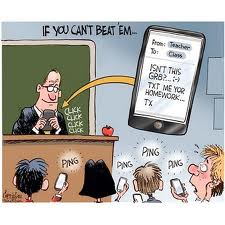
Should Teachers be able to Text Students?

November 4, 2012

I completely agree with Alan Howe, who argues that it should be a crime for teachers to text a student without sending the same message to the parents of the child.

Some recent court cases have me thinking that we should update another Victorian law – as quickly as we can.

A scan of the evidence given in a series of trials over the last seven years involving predatory teachers abusing children in their care shows an alarming correlation.

Eltham North physical education teacher Karen Ellis had sex with a 15-year-old student of hers. She said she was in love with him. She was then married, with three children.

You’d reckon a part-time job and three kids would keep a young mum busy enough, but multi-tasking Ellis found time to send one young man 499 text messages in three months.

They had sex six times before the boy’s mother worked things out.

Ellis, sounding as dumb as she looks, said that she might have still been with the boy had he been older and the circumstances different. But he wasn’t, and they weren’t.

After lenient County Court judge John Smallwood suspended her sentence, three Court of Appeal judges more sensibly decided Ellis should be jailed.

Another female phys ed teacher, Belinda Campbell, was suspended from teaching after being found to have kissed a boy to whom she sent 200 text messages.

The trend is as clear as your ring tone: predatory teachers are using text messages to criminally prepare kids for sex that not only disrupts their school years, but can scar them for life.

They prefer text messaging for several reasons:

It doesn’t involve a ringing phone that could attract a parent’s attention – you know, like the way you might ask your son why his phone had just gone off 1000 times.

A silent communication can also be made at any hour.

Unlike an email, of which there might be a physical manifestation such as a printout – a text message is slyly elusive.

And unlike a family laptop, the mobile is not a shared device. It’s in your pocket.

The problem is obvious, and so is the solution.

Any Victorian teacher sending a text message to a child under their care, supervision or authority should be required to copy in that student’s parent or guardian.

Not to do so should be a criminal offence.

There will be a small degree of inconvenience in this, like there is in passing through security at the airport.

But it will do the trick in an instant.

The Victorian Institute of Teachers disciplinary panel found her guilty of serious misconduct, but suspended her for only a year.

Click on the link to read 50 Ways To Use Skype In Your Classroom

Click on the link to read Top 10 Educational i-Pad Apps

Click on the link to read Top 10 Math Apps for Children

Click on the link to read The Pros and Cons of iPads in the Classroom

I am Destined to be Replaced by a Computer

September 27, 2012


If I am to be replaced by a computer I have the following requests to make of my replacement:

1. The computer must have a sense of humour: My students love to laugh. The computer should never take himself too seriously.

2. The computer must be tough on bullying: Bullying can destroy a child’s school life. The computer must crack down on that.

3, The computer must be patient: It is very important to remain calm and supportive without giving up on the students.

4. The students must be caring and command respect from the students: We have all had heartless teachers. They don’t work.

5. The computer must be aware of any self-esteem issues that may arise in the classroom: The computer must be perceptive.


As my days as a teacher seems to be numbered, I hope my replacement manages to stay true to my list:

Teachers will likely be replaced by humanised computers so advanced they can read and consciously respond to students’ voices, faces and interests within decades, Apple co-founder Steve Wozniak says.

The once-shy electronics whiz kid who formed the computing juggernaut with Steve Jobs in 1976 says the exponential growth of modern technology has changed his long-held belief that computers could never achieve humanoid intelligence.

“I just said no, that’s ridiculous, the brain works in totally different ways … it’s just not going to happen. Now I’ve come around, and I see that yes, it is going to happen,” Wozniak told a packed Melbourne Convention Centre on Wednesday.


Click on the link to read 50 Ways To Use Skype In Your Classroom

Click on the link to read Top 10 Educational i-Pad Apps

Click on the link to read Top 10 Math Apps for Children

Click on the link to read The Pros and Cons of iPads in the Classroom

50 Ways To Use Skype In Your Classroom

September 17, 2012

Courtesy of edudemic.com. Below is the first 17 suggestions:

  1. Meet with other classrooms:
    One of the most common projects educators utilize Skype for is setting up exchanges with classrooms around the world, usually for cultural exchange purposes or working together on a common assignment. The program’s official site provides some great opportunities to meet up with like-minded teachers and students sharing the same goals.
  2. Practice a foreign language:
    Connect with individual learners or classrooms hailing from a different native tongue can use a Skype collaboration to sharpen grammar and pronunciation skills through conversation.
  3. Peace One Day:
    Far beyond classroom collaborations, the Peace One Day initiative teamed up with Skype itself and educators across the globe to teach kids about the importance of ending violence, war, and other social ills.
  4. Around the World with 80 Schools:
    This challenge asks participating schools to hook up with 80 worldwide and report back what all they’ve learned about other cultures and languages.
  5. Talk about the weather:
    One popular Skype project sees participants from different regions make note of the weather patterns for a specified period of time, with students comparing and contrasting the results.
  6. Collaborative poetry:
    In this assignment, connected classrooms pen poetic pieces together and share them via video conferencing.
  7. Practice interviews:
    The education system frequently receives criticism for its failure to prepare students for the real world, but using Skype to help them run through mock-up interviews with each other, teachers, counselors, or professionals will help grant them an advantage.
  8. Gaming:
    Merge the educational power of gaming with the connectivity of Skype for interactive (maybe even international!) role-playing and other competitive delights that educate and engage in equal measure.
  9. Hold a contest:
    Challenge other classrooms to a competition circling around any subject or skill imaginable, and work out a suitable prize ahead of time.
  10. Hold a debate:
    Similarly, Skype can also be used as a great forum for hosting formal and informal debates to help students with their critical thinking and research skills.
  11. Make beautiful music together:
    Build a band comprised of musicians worldwide, who play and practice together over video — maybe even hold digital performances, too!
  12. Who are the people in your neighborhood?:
    All the press about classrooms meeting with one another tend to veer towards the international, but some schools like to stay local. These two Tampa Bay-area kindergartens met regularly via Skype, sharing their current assignments with new friends only 10 miles away.
  13. Highlight time differences:
    But there is something to be said about global exchanges, too, as it provides some insight into the differences between time zones — great for geography classes!
  14. Combine with augmented reality:
    Both at home and in school, Skype provides a communication tool for collaborative augmented reality projects using the PSP and other devices.
  15. Mystery call:
    Link up to a classroom in another region and have them offer up hints as to their true location, challenging students to guess where in the world their new friends live.
  16. Each student works a specific job during calls:
    Divvy up responsibilities during Skype calls so every student feels engaged with the conversation, not just passive participants watching talks pan out. Assign bloggers, recorders, mappers, and any other tasks relevant to the meeting and project.
  17. Play Battleship:
    The classic board game Battleship offers up lessons in basic X and Y axes; plus it’s also a lot of fun. Compete against other classrooms for an educational good time.

Click here to read the rest.

Click on the link to read Top 10 Educational i-Pad Apps

Click on the link to read Top 10 Math Apps for Children

Click on the link to read The Pros and Cons of iPads in the Classroom

Top 10 Math Apps for Children

August 21, 2012

Courtesy of teacherswithapps.com:


iDevBooks – Educational Math Apps, by Esa Helttula, are par excellence when it comes to educational tools! This suite of apps are a must-have for any school using mobile devices, as well as for parents who want to encourage mastery of math concepts for their children. This collection of 16 iPhone, iPod Touch, and iPad educational math apps are easy to use and offer intuitive interfaces. The iDevBooks math apps are used by schools, parents, and students worldwide. They are also popular in special education.

Jungle Time, Jungle Coins & Jungle Fractions!, by Andrew Short, of Jungle Education – We still need to learn to tell time, utilize money, and understand fractions. These three essential concepts are not easy to teach and harder to learn. Lots of hands on practice is needed and Andrew Short has got the “lots of” covered. All three games offer five levels of challenge, they start with the rudimentary concept and gradually progress over several grade levels. A MUST HAVE!

Motion Math: Hungry Fish, by Motion Math, is another MUST HAVE math game! Mental math is such a key component for success in building a strong foundation in math, and building on this early on helps all other math concepts fall into place with relative ease. Our students were enthralled by this simple, yet brilliant game – and they were polishing up on their number skills with smiles on their faces! Brilliant job Motion Math!

Math Evolve, by InterAction Education and Zephyr Games, has really pushed the envelope. This app introduces a revolutionary “video-like” gaming app for practicing math facts. One of our students called it, “The Call of Duty,” of math games. Adam Coccari, teacher and creator of Math Evolve, sums it up best when he says, “Achieving success in all levels of math starts with having a solid foundation in addition, subtraction, multiplication, and division.” Mastering these facts takes time and lots of practice, Math Evolve has taken care of all of that in an enormously engaging format.

Operation Math, by Spinlight Studios, is sizzling with excitement! The mission is possible with this new app, which grabs kids attention immediately and keeps them engaged on their quest to do good. The goal here is to help destroy Dr. Odd and practice your basic math facts along the way. In order to open the series of locked doors, you must perform either addition, subtraction, multiplication, division, or any combination of operations. You can first train in the infinite Base10 Training Room, where your performance will be tracked. When you are up for the challenge, you choose a mission.

Sums Stacker, by Carstens Studios Inc, is an amazing app. It incorporates critical thinking, problem solving, and strategic planning skills, all while you’re “playing” with math concepts, with great gaming style! Carstens’ says this about math, “It wasn’t until after my school years, that I became a lover of math. I managed to slip through all of those classes, text books, and homework assignments, without learning one of the most important math lessons of all – math is fun!” This app challenges your reasoning, your number sense, your addition and subtraction facts, and your knowledge of coin values, and oh yes, reading, if you so desire.

  iTooch MATH Grade 5, by eduPAD, is a terrific app that covers a lot of ground conept-wise and shouldn’t be limited to just fifth graders. This app combines a no-frills approach to content while still providing the user with an exciting learning experience. The mascot is adorable and keeps kids on task with lots of encouragement and there is a lesson summary available when needed. iTooch MATH now has grades three through five available.

Oh No! Fractions, by di Luna, came recently to our attention, but if a colleague hadn’t said, “It’s tough for kids to grasp fractions”, it may have slipped through the cracks. Luckily, it didn’t and we are here to sing its praises.Oh No! Fractions is as simple as it gets. This gorgeous app lets the user decide whether the given fraction is less or greater than another fraction. After the child has decided and chosen less or greater, it asks ”I’m Sure” and then “Prove It” where a visual representation of the two fractions is shown and manipulated by the child.

TallyTots, by Spinlight Studio, is a simple yet invaluable learning app to teach youngsters number concepts. The intent of the app is to teach your child number recognition, one-to-one correspondence, and how to count to 20 – all while having a delightful time. When the app starts, you are taken to a screen that has all 20 numbers. Your child chooses the number they want and the counting begins. Each number is outlined as it is counted up the number line.

KidgitZ, by TapDream Arts, is the second in a series of mental math challenges for kids of all ages. Addictive, it is! Students were so engaged that they never even heard the bell ring… and the next period was lunch and recess! Several students came looking for me and my iPad to continue playing during extra help. Their responses were all similar, with mentions of how hard it was to stop playing this AWESOME game!

Click on the link to read Maths is a Very Poorly Taught Subject

Click on the link to read The Obstacle Course that is Teaching Maths

Click on the link to read Girls and Maths

Click on the link to read Putting Your Children to Sleep With Math